Xero
Connect Exopen to Xero to automatically sync bookkeeping, accounts receivable and payable, invoices, projects, products and cost centers.
The connection is made via OAuth — a user in Xero signs in and approves Exopen's access to the organisation you want to connect. You do not need to create an API key manually.
Prerequisites
- The user who approves the integration must have rights to connect external apps to the Xero organisation and to read bookkeeping, invoices, contacts and settings.
- The Xero organisation must have at least one active tracking category. When the data source is created you choose which tracking category to use as the cost center in Exopen. If no active tracking category exists, the data source cannot be created — set one up in Xero first.
Step 1: Add the data source in the Exopen portal
-
Sign in to the Exopen portal.
-
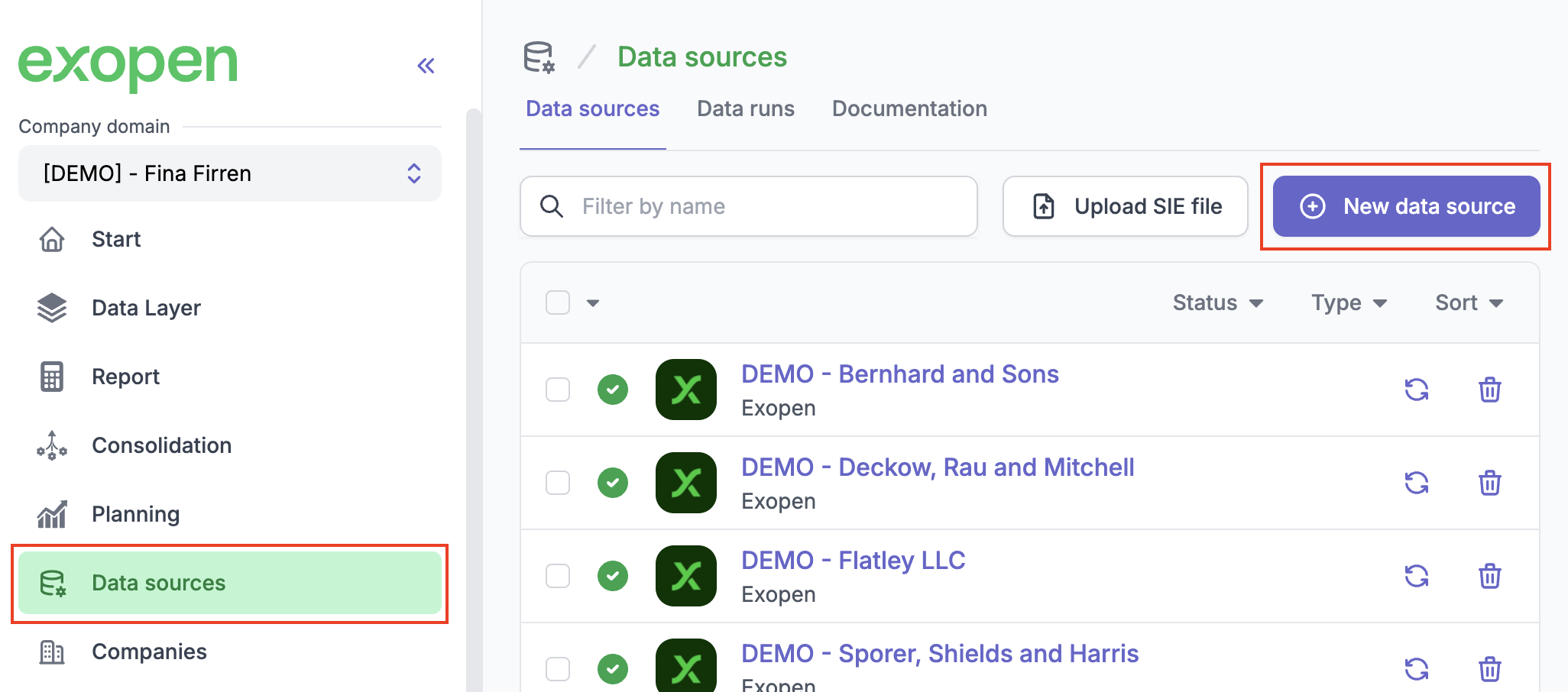
Go to Data sources and click New data source.
-
Select Xero from the list of available integrations.
-
Click Import tenants. A popup window opens against Xero.
-
Sign in to Xero, select the organisation to connect and approve Exopen's access. Once approval is complete the popup closes automatically and the organisation appears in the list in the portal.
-
Click Configure next to the organisation.
-
Select which tracking category to use as the cost center in Exopen.
-
Click Create Data Source.
Exopen creates the data source and starts an initial sync. Depending on the volume of data, the initial sync can take anywhere from thirty minutes up to a couple of hours.