SIE
Upload a SIE file to import bookkeeping into Exopen from your accounting system. The integration accepts SIE 4 files from any system that can export the format.
Unlike our direct connectors, the SIE integration is file-based — you upload a new file every time you want to refresh the numbers in Exopen. There is no automatic background sync.
Prerequisites
A SIE 4 file exported from your accounting system. The export step differs between systems — follow your vendor's own documentation.
Step 1: Add the data source in the Exopen portal
-
Sign in to the Exopen portal.
-
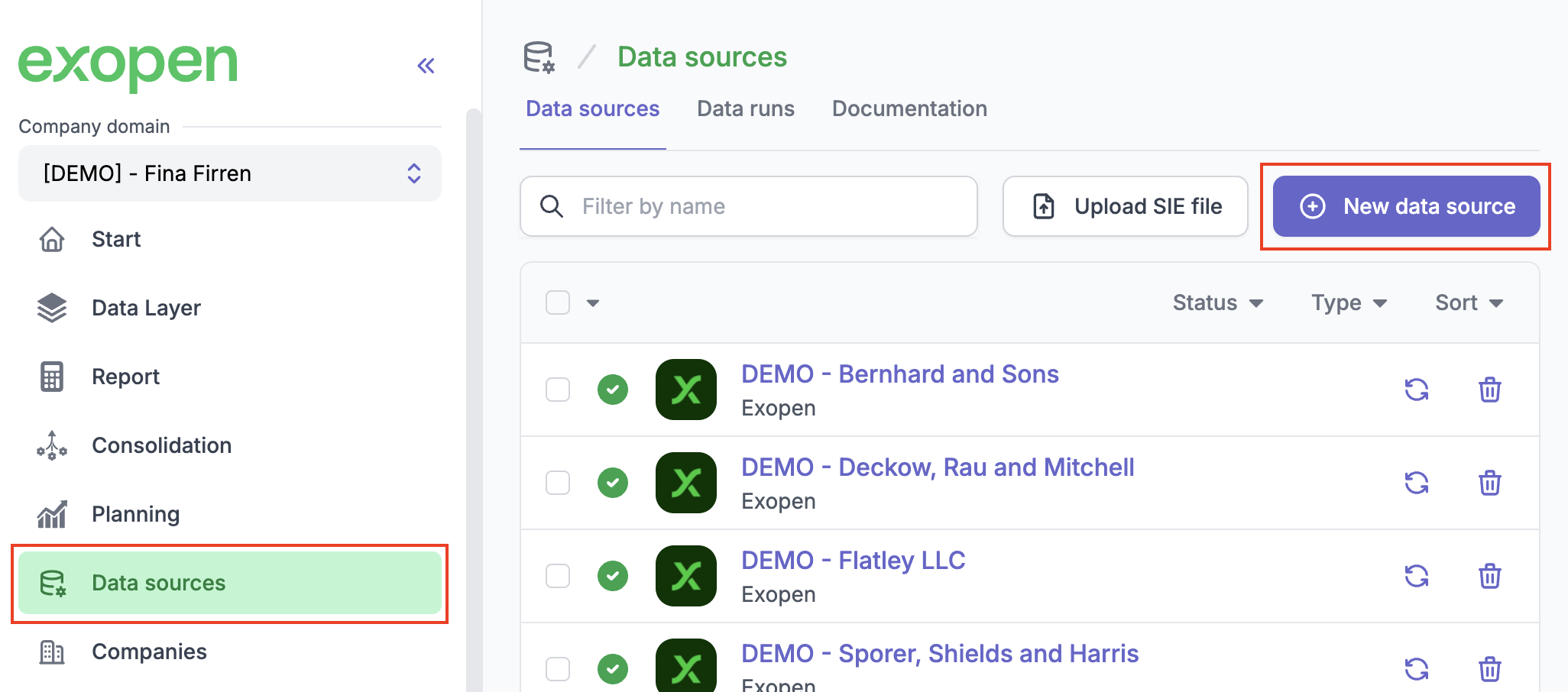
Go to Data sources and click New data source.
-
Select SIE from the list of available integrations.
Step 2: Upload the file and verify the details
-
Choose the SIE file you exported from the accounting system.
-
Exopen reads the file and shows a preview with the organisation number, organisation name, fiscal year, currency, and source system. Check that the details look right.
-
Link the file to an integration:
- If the organisation number in the file matches an existing SIE integration, the file is attached to it automatically.
- If the file has no organisation number, or it does not match any existing integration, pick an existing integration from the list or create a new one.
-
Once the file is parsed, a summary appears with the income statement and balance sheet. Reconcile the totals against the accounting system — if any figures are missing or look wrong, export the SIE file again and re-upload it.
Until you activate the file in the next step, it is not part of any reports or syncs. You can upload and preview without affecting anything.
Step 3: Activate the file
Once the numbers check out, switch on the Active toggle on the file. The data becomes available in Exopen and is included in the next sync.
Maintaining the connection
The SIE integration does not require recurring authentication, but you do need to upload a new file whenever you want to refresh the bookkeeping in Exopen.
- New fiscal year or new period — Export a SIE file for the new period from the accounting system and upload it the same way as in Step 2. The file is automatically linked to the same integration if the organisation number matches.
- Updated version of an already activated file — If you upload and activate a file whose fiscal year overlaps an already activated file, the old file is replaced automatically. Previously activated files for the same period are deactivated.
Need help? Contact us at support@exopen.se.