PowerOffice
Connect Exopen to PowerOffice to automatically sync bookkeeping, accounts receivable and payable, invoices, projects, products and departments.
The connection is made via OAuth — an administrator in PowerOffice signs in and approves Exopen's access to the company you want to connect. You do not need to create an API key manually.
Prerequisites
The user who approves the integration must be an administrator in PowerOffice for the company to be connected. If the bookkeeping is handled by an external party (for example an accounting firm), the approval can be delegated — see option 2 in Step 1.
Step 1: Add the data source in the Exopen portal
-
Sign in to the Exopen portal.
-
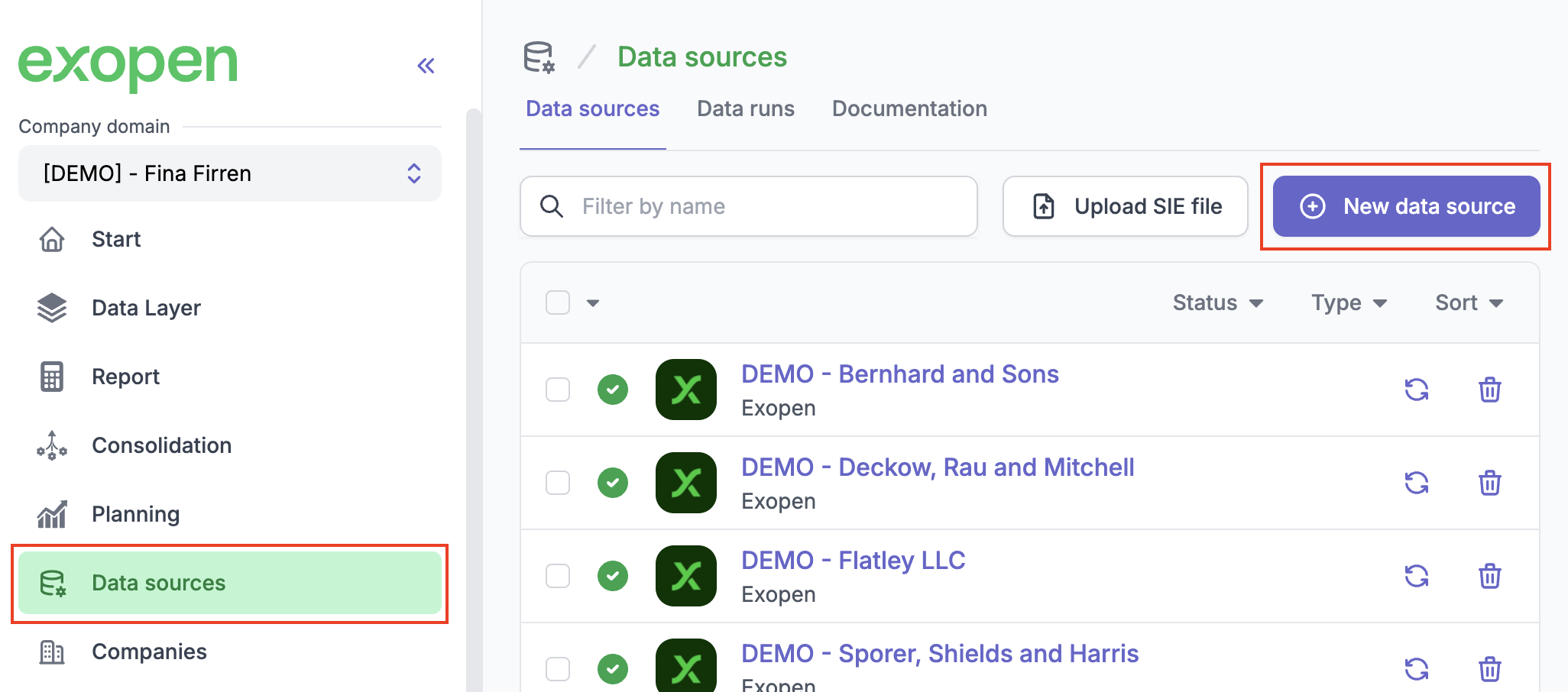
Go to Data sources and click New data source.
-
Select PowerOffice from the list of available integrations.
-
Choose how the approval should be carried out:
Option 1 — I want to do it myself
You'll be redirected to PowerOffice to sign in and approve the integration. Use this option if you are the administrator in PowerOffice for the company to be connected. Click Continue to start the sign-in.
Option 2 — Share a link with a non-Exopen user
Click Copy link to copy an approval link to your clipboard. Send the link (for example by email) to a person who is an administrator in PowerOffice for the company. Once the recipient opens the link, signs in and approves the integration, the data source becomes available in your portal. Use this option when the bookkeeping is handled by an accounting firm or another external party.
-
Sign in to PowerOffice (option 1) or wait for the recipient to complete the approval (option 2). Select the company to connect and approve Exopen's access.
Once approval is complete, Exopen creates the data source automatically and starts an initial sync. Depending on the volume of data, the initial sync can take anywhere from thirty minutes up to a couple of hours.
Maintaining the connection
If you later need to renew the approval — for example if access has been revoked in PowerOffice — an administrator in Exopen can do so from the data source overview page:
- Recreate the connection opens a new PowerOffice sign-in in a new tab.
- Copy authentication link copies an approval link that can be shared with an external administrator, the same way as in Step 1.
When you renew the approval you must select the same company in PowerOffice that the data source is already linked to (the same organisation number). Approving with a different company aborts the renewal with an error. If you actually need to switch companies, create a new data source and remove the old one.