Settings and preferences
Click Settings at the bottom of the chat sidebar to open the settings dialog. From here you control how the AI behaves for you specifically.
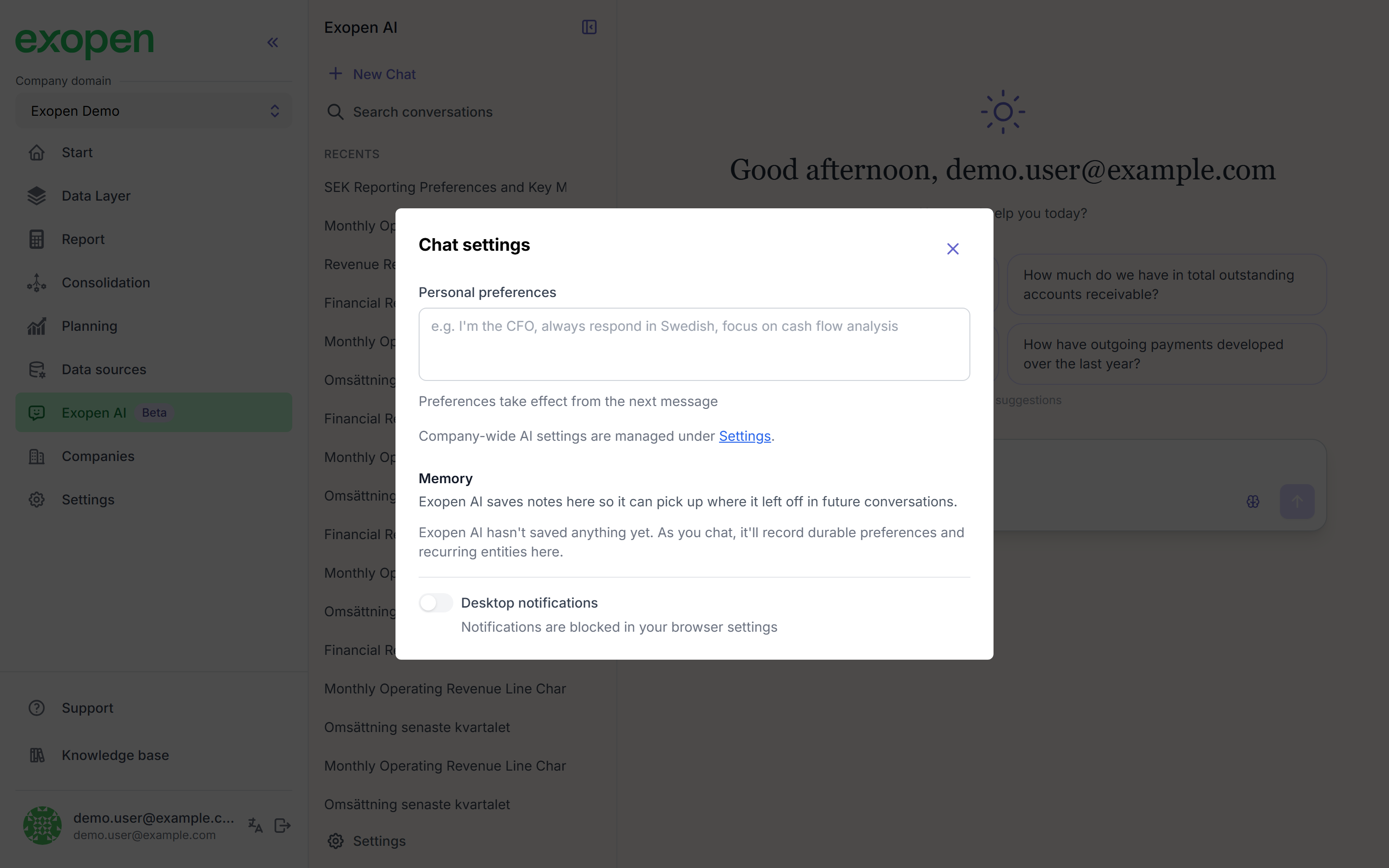
The settings dialog gathers personal preferences, memory, and notifications.
Personal preferences
Free text describing how you want the AI to work. Preferences take effect from your next message and apply in every future conversation. Examples:
- "I'm the CFO, always respond in Swedish, focus on cash flow analysis."
- "Always calculate in SEK and show amounts in thousands."
- "I work on the Norrland region — show Norrland first when displaying results."
Memory
The dialog also shows the memory panel — what the AI has saved about your work patterns. You can delete individual memory items or clear everything — see Memory.
Desktop notifications
Turn on Desktop notifications to get notified in the browser when the AI responds while you're in another tab. If notifications are blocked in your browser, the toggle is disabled — you'll have to allow notifications for Exopen in your browser's settings first.
Company-wide settings
If you're an admin, the dialog shows a link to company-wide AI settings. Settings there apply to every user in your company — see Managing company-wide settings.