File attachments
You can upload files in a conversation and ask the AI to read, summarise, or compare them against your finance data.
Supported file types
- Images: JPEG, PNG, GIF, WebP
- Documents: PDF, Word (.docx), ODT, text, CSV, HTML, Markdown, JSON
- Spreadsheets: Excel (.xlsx)
- Other: RTF, EPUB
Limits
- Up to 5 files per message
- Up to 30 MB per file
How to attach a file
- Click the paperclip icon in the message input, or drag and drop the file straight into the chat.
- The file appears as a chip above the message input.
- Type your question and press Enter — the file is sent with the message.
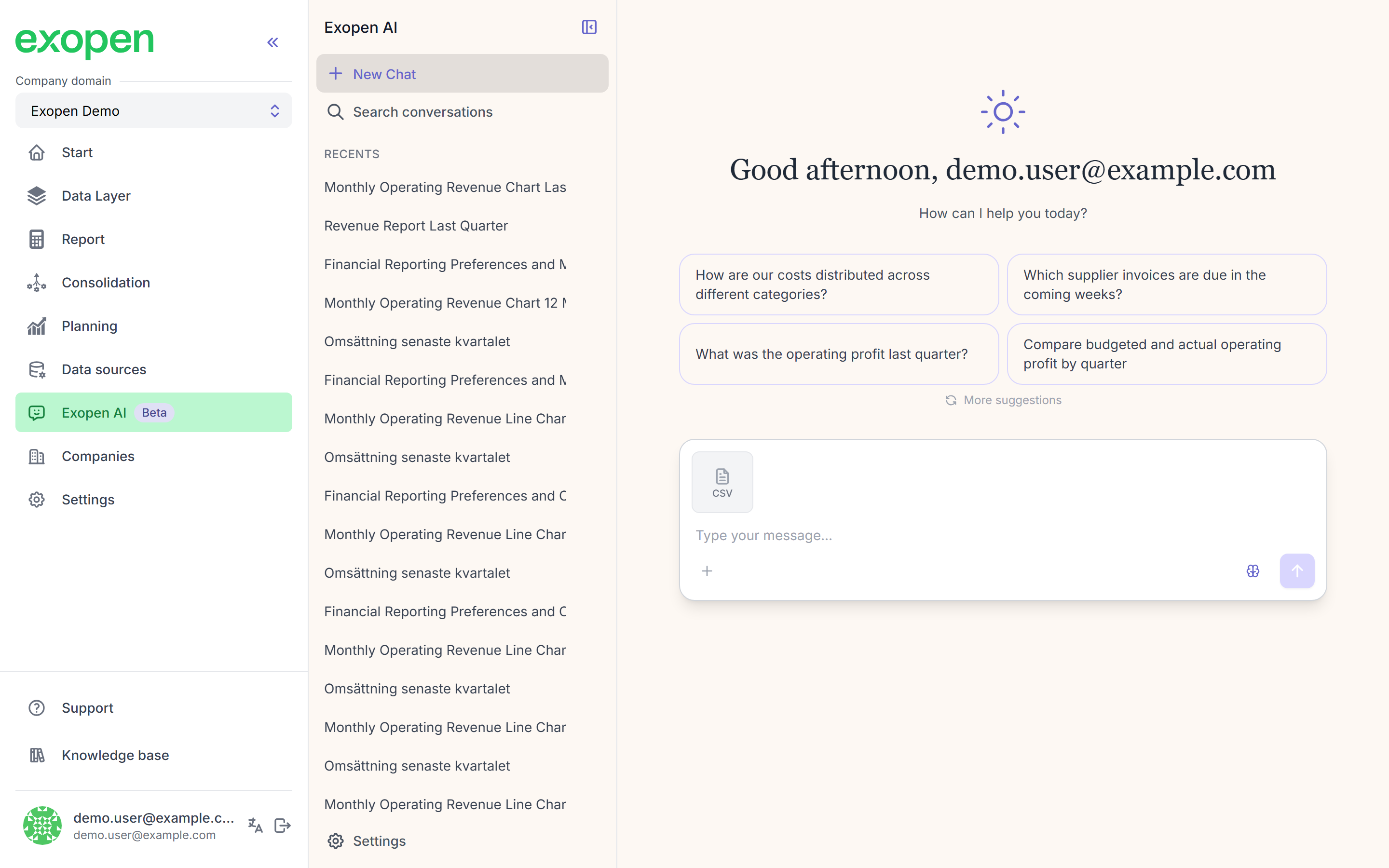
An attached CSV file appears as a chip above the message input.
What the AI does with the file
- Reads the contents and references it in the answer
- Compares values in the file against your finance data (e.g. targets vs actuals)
- Summarises or extracts specific data (e.g. "which suppliers are mentioned in this invoice?")
Where the file is stored
The file becomes part of the message you send and is visible in the conversation. When you delete the conversation, the file goes with it. There is no separate file library to browse.
Tips
- Be explicit about what the AI should do with the file in the same message.
- Large Excel files work — but stay under the 30 MB limit.
- Don't attach files containing sensitive information that doesn't belong in the finance domain (e.g. personal data outside finance).