The chat interface
Exopen AI opens in a two-pane window: a sidebar on the left and the conversation itself on the right.
The sidebar
- New Chat — starts an empty conversation.
- Search — searches across all your conversations by title and content.
- Conversation list — every saved conversation in time order. Pinned conversations sit at the top.
- Settings — preferences, memory, and notifications.
On narrow screens the sidebar collapses to icons. Click the toggle button to fold it in or out.
The conversation area
This is where messages from you and the AI appear in chronological order.
- Your messages are on the right.
- The AI's replies are on the left and can include text, tables, charts, citations, and follow-up suggestions.
- Tool activity shows inline in the reply — e.g. "searching customer X" or "fetching income statement". Click to expand details.
- Thinking blocks appear before the answer and contain the AI's internal reasoning when the AI uses extended thinking.
Hover over an answer to copy it, leave feedback, or retry.
The message input
The field at the bottom is where you type:
- Type text and press Enter to send. Use Shift+Enter for a new line.
- The paperclip icon opens the file picker. You can also drag and drop files straight into the field.
- The stop button replaces the send button while the AI is streaming an answer — click to abort.
- The thinking toggle controls whether the AI may use extra "thinking" on the next question (off by default).
Streaming responses
Answers appear as they're generated. You can start reading before the AI is done. Click the stop button to abort — anything you've already received is preserved. If a stream stops on its own (network or server error), see Troubleshooting.
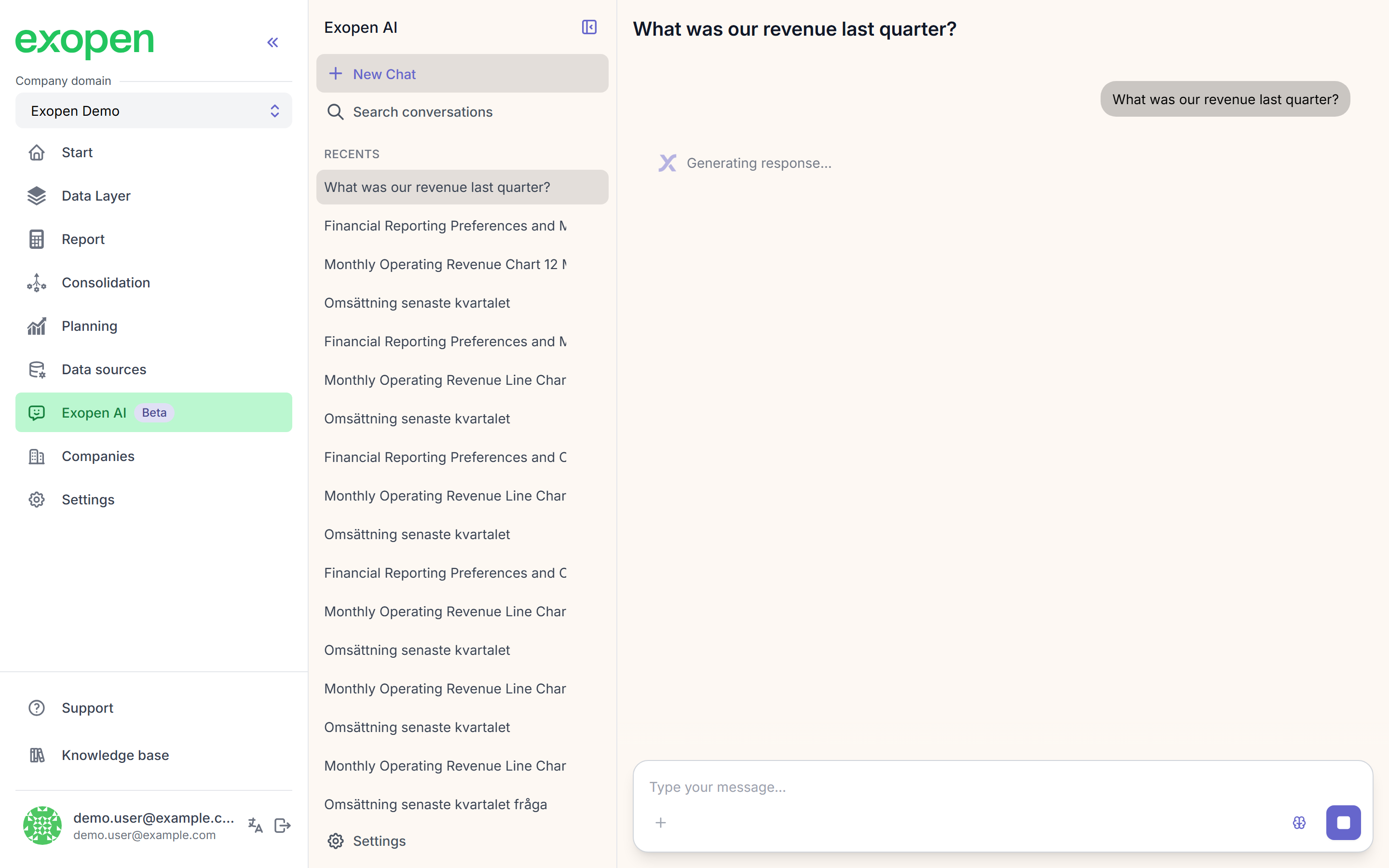
The AI processes the response while the streaming indicator is shown.
Suggestions and follow-ups
After an answer, suggestion chips sometimes appear — click one to send it as your next question.
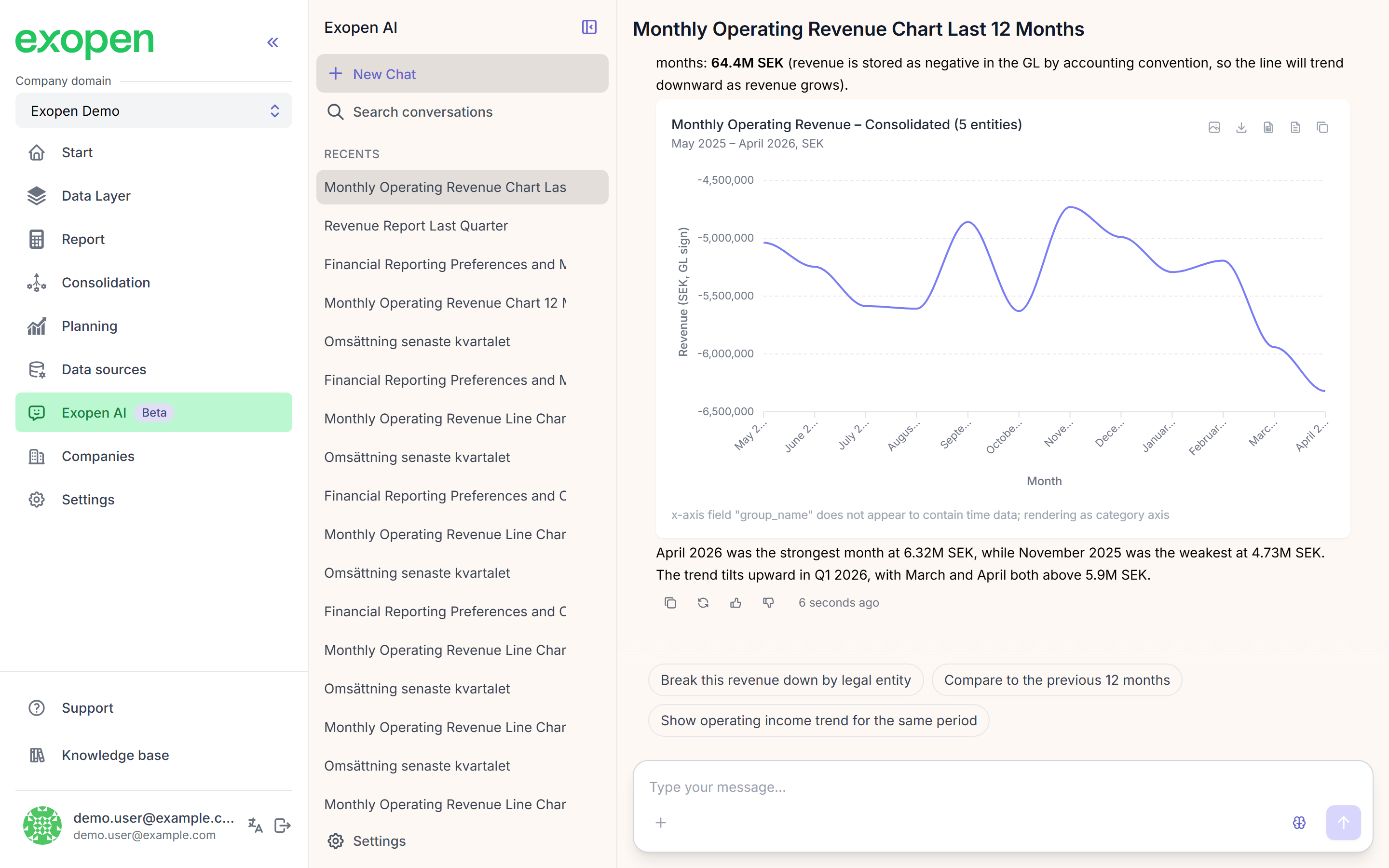
A complete answer — chart, text summary, feedback icons, and follow-up suggestions.
If the AI needs more information, it sometimes opens a question panel with 1–4 options. Pick one, or type your own answer.
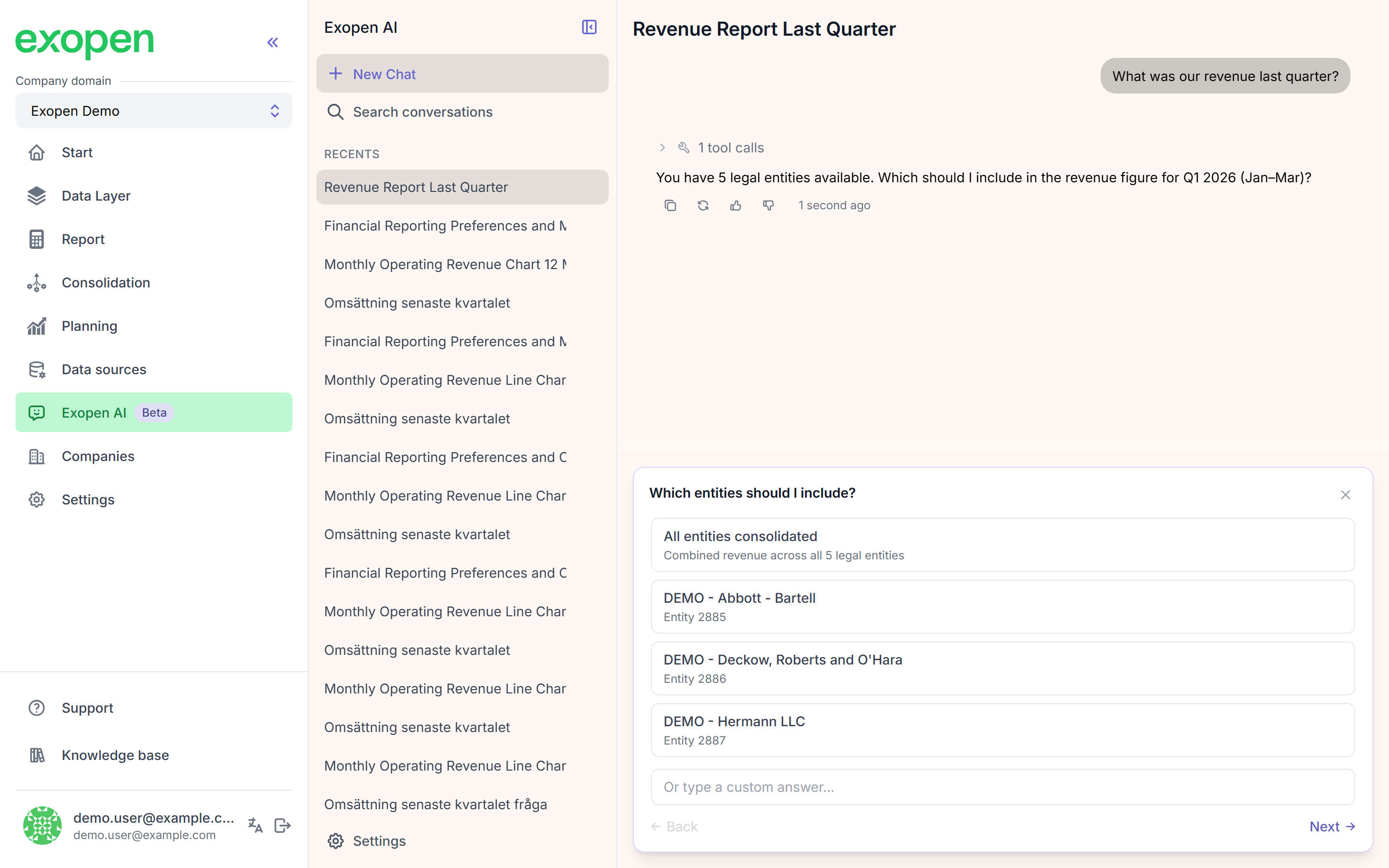
The AI opens a question panel with clickable options when it needs clarification.