Onboard users in Exopen for Excel
Intended for: company administrators in the Exopen portal.
Overview
Two things are required for a user to be able to use Exopen for Excel. Note that these are two different types of groups:
- Portal group. The user is invited to the portal and assigned a portal group that gives access to Exopen for Excel as a feature.
- System database group. The user belongs to a system database group that controls which documents they can open.
Portal groups are managed in the Exopen portal and control feature access. System database groups are managed in Report 6 during the transition period and control document access.
Roles
Exopen for Excel has two administrator roles. It is useful to know the difference:
Company administrator. A new role in Exopen for Excel. The company administrator manages the organisation in the portal: invites users, creates portal groups and controls which features the users have access to.
Report administrator. An administrator in your system database who controls access to reports and folders, and manages documents, for example by publishing and organising them.
One and the same person can have both roles. This guide is aimed mainly at company administrators.
Invite the user in the portal
- Sign in to the Exopen portal as a company administrator.
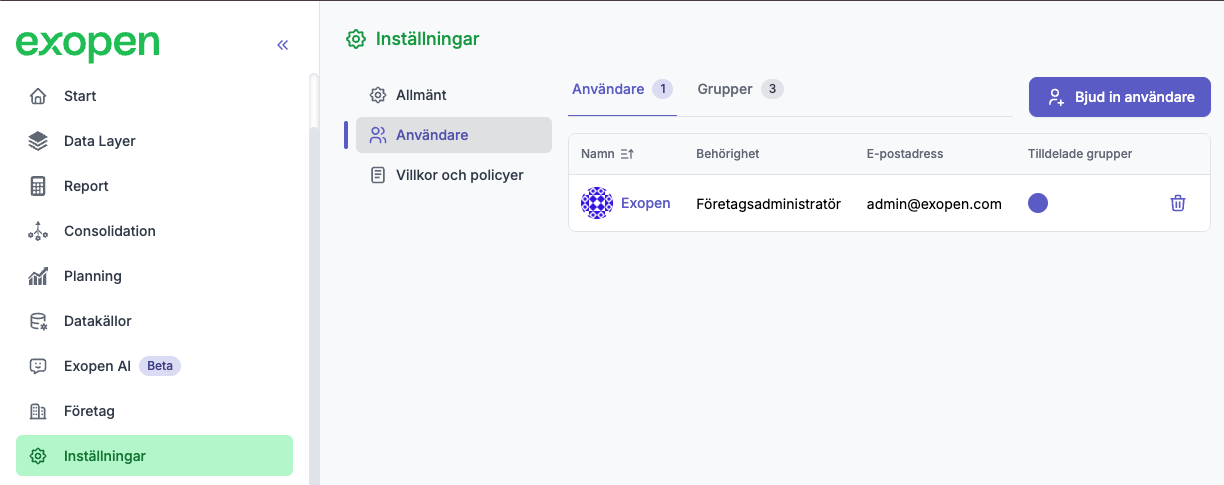
- Go to Inställningar → Användare (Settings → Users).
- Click Bjud in användare (Invite user).
- Enter the user's email address.
- Choose or create a portal group that gives access to Exopen for Excel (see Create a portal group further down).
- Send the invitation.
Company administrators already have access to Exopen for Excel and do not need to be assigned a specific portal group.
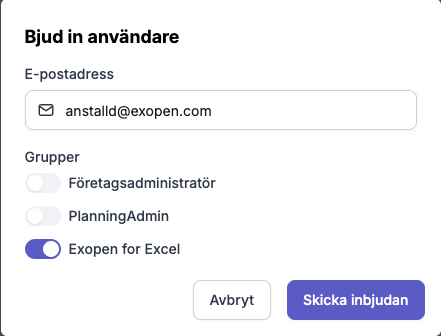
The user can now sign in to the portal and to the Exopen for Excel add-in with their Microsoft or Google account. If they do not have such an account, they can create one via the Sign up button in the sign-in dialog.
Users without previous access (new to the system database)
This applies to users who cannot be linked to an existing system database user in Report 6. There can be two reasons: either the person has never used Report 6, or their system database user has no email address and therefore cannot be matched to the portal account. When such a user signs in to Exopen for Excel for the first time, they are automatically assigned a system database group called ExopenForExcelDefault in Report 6. The group has no document access by default, so the user sees no reports until the group has been given document access.
Users who already exist in Report 6 (have an existing system database user) are not affected by this. They keep their current group and document access.
What you need to do
We recommend that you create the system database group ExopenForExcelDefault in Report 6 in advance and assign the documents that should be the default for completely new users in the system database. They then land directly in a group with the right document access when they sign in for the first time.
Existing Report 6 users
If the user already has a system database user in Report 6, the portal invitation (step 1) is enough. All the document access they have today works directly in Exopen for Excel.
The user must be invited with the same email address that is registered in the system database, otherwise their existing access is not linked to the portal account.
Create a portal group
Portal groups are managed in the Exopen portal and control which features (for example Exopen for Excel) a user has access to. If you do not already have a portal group that suits Exopen for Excel users, you can create a new one:
- Click Grupper (Groups).
- Click Ny grupp (New group).
- Enter a name, description and colour.
- Choose which Legala enheter (Legal entities) the group should have access to.
- Go to Funktioner (Features) and tick Exopen for Excel.
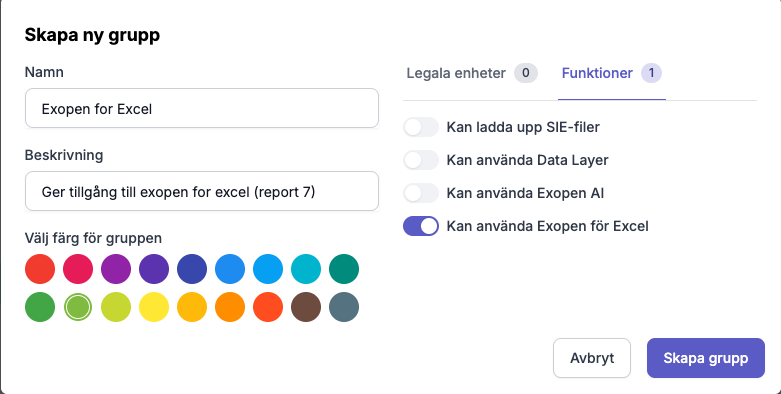
You can now assign the group to users.
Troubleshooting
| Problem | Cause | Action |
|---|---|---|
| The user sees "Ingen tillgång" (No access) | Not assigned the right portal group | Verify the portal group |
| The user sees no reports | Lacks document access | Add documents to the system database group in Report 6 |
| The user gets the wrong email | The invitation went to the wrong address | Invite again with the correct address |