Using Exopen for Excel
This guide assumes that you have installed the add-in and signed in. If you have not, start with Getting started.
Open a report
- In the report tree, browse to the folder.
- Click the name of the report.
- The report is loaded into the workbook.
Selections and running the report
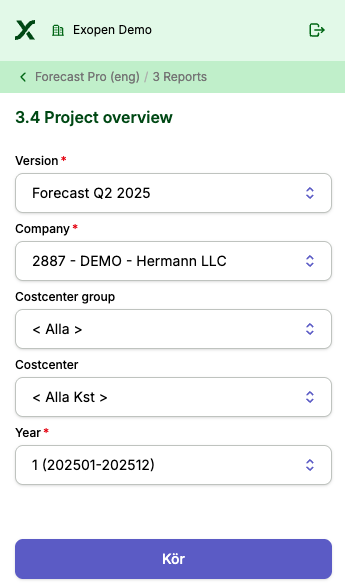
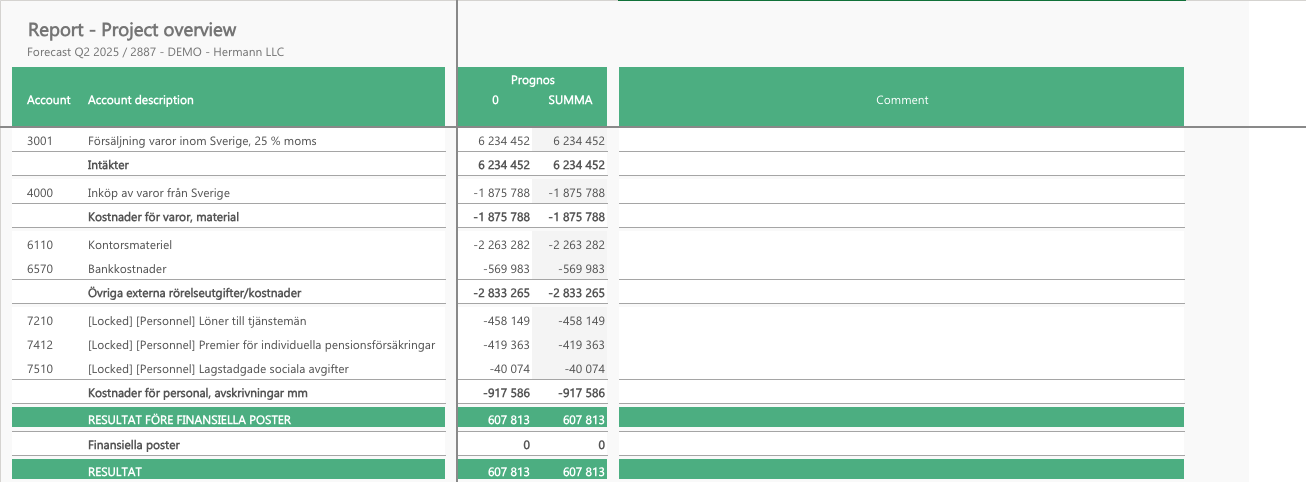
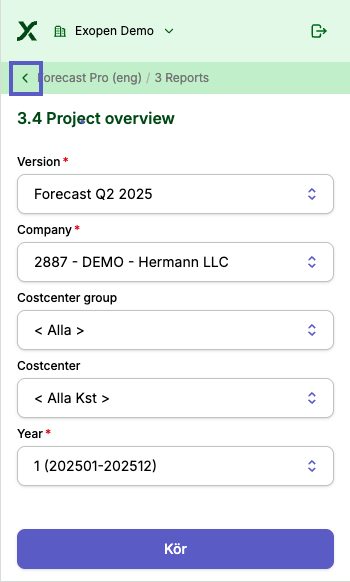
Selections control what the report shows (period, company and so on). Adjust values in the side panel; dependent selections update automatically. When you are done, click Kör (Run) → data is fetched and written into the sheet.
Back to the report tree
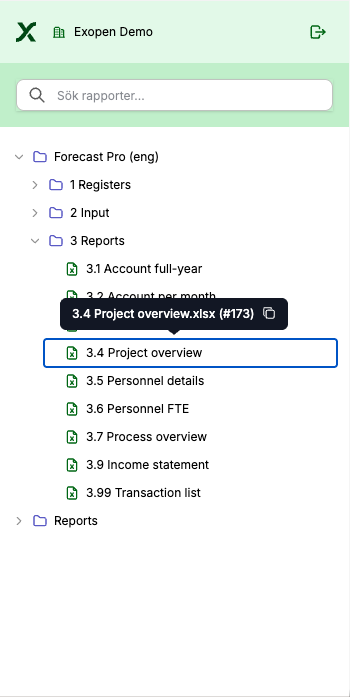
When you are inside a report and want to open another one: click the arrow at the top left of the side panel to return to the report tree.
Drilldown
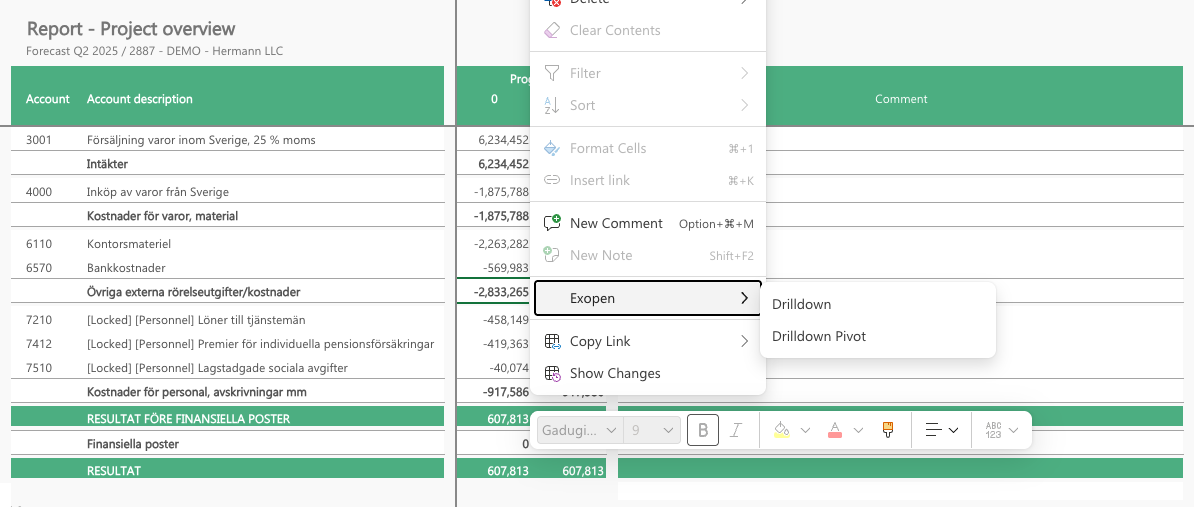
Right-click a cell with a value → choose Exopen → Drilldown → the details open.
You can also drill straight to a pivot → choose Drilldown Pivot instead of Drilldown in the same menu.
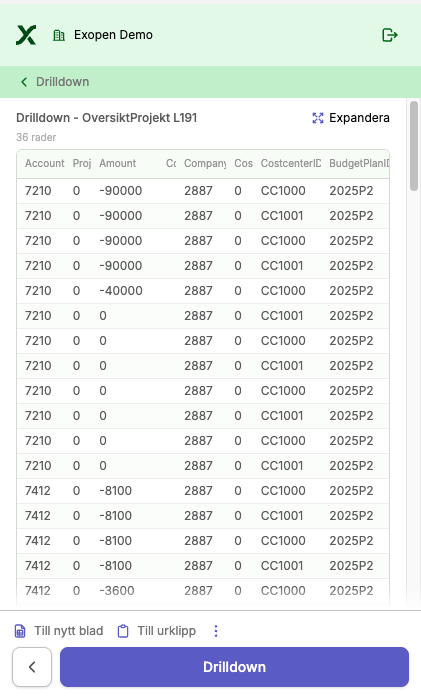
The side panel now switches from Selections to the Drilldown view, where you see the detail rows behind the value.
In the drilldown view you can:
- Click Expandera (Expand) to open the table in a new window.
- Copy the table to the clipboard or to a new sheet using Till urklipp (To clipboard) or Till nytt blad (To new sheet) at the bottom.
- Create a pivot table by clicking the three-dot menu (context menu) in the field above.
- Go back to selections using the arrow at the bottom left.
- Drill again by either right-clicking a new cell, or selecting a new cell and clicking the Drilldown button.