Getting started with Exopen for Excel
This guide takes you from no add-in to having Exopen for Excel installed and being signed in.
Before you begin
- You need access to the Exopen portal.
- You need to be assigned to a group that gives access to Exopen for Excel.
- You need Excel and a Microsoft account. Excel Online is free in the browser, while Excel Desktop requires a Microsoft 365 licence.
Install the add-in
Via the Add-in store
- Open Excel.
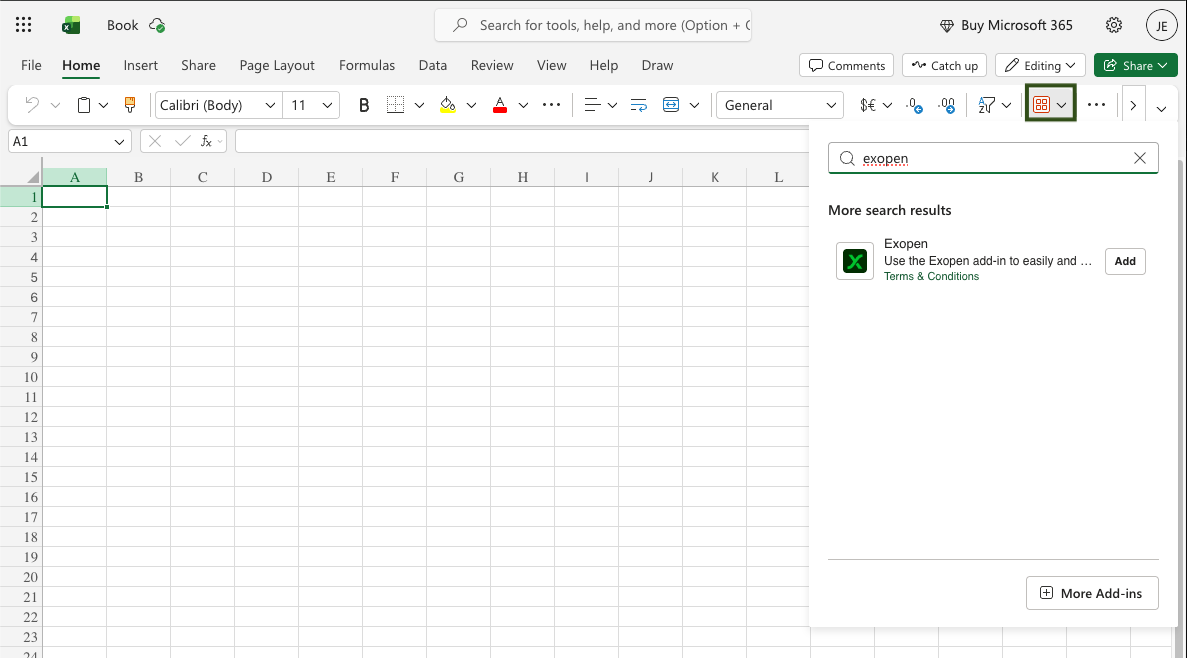
- Go to Home → Add-Ins → type "Exopen" in the search box.
- Click Add next to the add-in.
tip
Your IT administrator can also deploy the add-in centrally via the Microsoft 365 admin center, in which case it appears automatically. See Distribute across the organisation.
Sign in
- Click the Exopen icon in the Excel menu → the side panel opens.
- Click Logga in (Sign in).
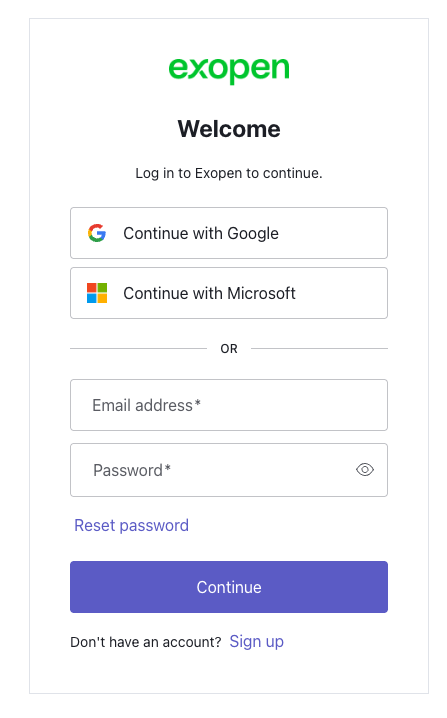
- In the dialog we recommend signing in with Continue with Microsoft or Continue with Google. That way you reuse an account you already have.
- If you do not have a Microsoft or Google account, click Sign up at the bottom of the dialog to create one.
note
If you see the page "Du har inte tillgång" (You do not have access): click the button and we will help you as soon as possible.
Next steps
You are now signed in. Continue with Using Exopen for Excel to open and run your first report.