Design, publish and manage reports
Intended for: report administrators and report builders who manage reports and folders in Exopen for Excel.
Who can manage reports?
To create folders, upload files, publish workbooks and rename or delete, you need the right permission. You can manage reports if you are any of the following:
- Company administrator
- Report administrator
- Developer
The difference between the roles is explained in the guide Onboard users. In short: company administrator is a new role in Exopen for Excel, while report administrator is an administrator in your system database who controls access to reports.
If you lack permission, the management menus are not shown. Contact your report administrator if you need access.
Design a report
The design view, where you build reports directly in the add-in, is on its way but not yet available to customers.
Coming soon.
Until then, you build reports in Excel with Exopen functions and publish them as described in the next section.
The management menus
Everything you manage in the report tree is reached through a menu with three dots. There are three levels, depending on where you click:
- The menu next to the search box, for actions on the whole tree.
- The menu on a folder, for actions on that folder only.
- The menu on a file, for actions on that report only.
Add to the tree
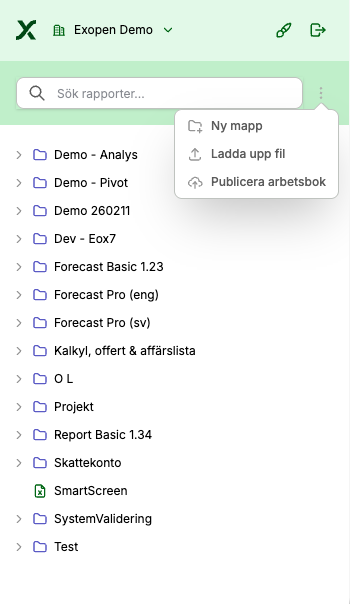
To add something at the top level of the report tree, click the three-dot menu next to the search box. There you can:
Ny mapp (New folder). Create a new folder at the top level.
Ladda upp fil (Upload file). Upload a file as a report. Supports Excel, PDF and Word (doc and docx).
Publicera arbetsbok (Publish workbook). Publish the workbook you have open as a report in the tree.
Manage a folder
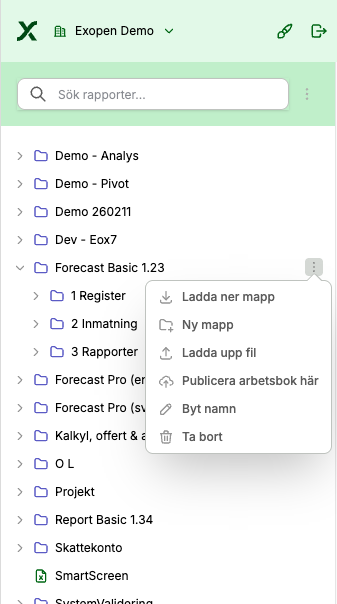
To manage a single folder, hover over the folder and click the three-dot menu on the right. There you can:
Ladda ner mapp (Download folder). Download the whole content of the folder.
Ny mapp (New folder). Create a subfolder inside the folder.
Ladda upp fil (Upload file). Upload a file to the folder. Supports Excel, PDF and Word (doc and docx).
Publicera arbetsbok här (Publish workbook here). Publish the open workbook directly in this folder.
Byt namn (Rename). Rename the folder.
Ta bort (Delete). Delete the folder.
Manage a file
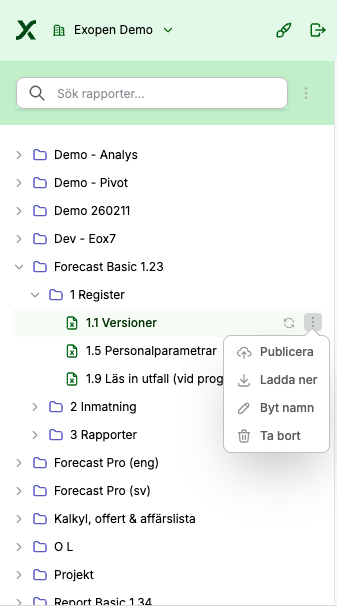
To manage a single report, hover over the file and click the three-dot menu on the right. There you can:
Ladda ner (Download). Download the report as an Excel file.
Byt namn (Rename). Rename the report.
Ta bort (Delete). Delete the report.
Publicera (Publish). If the file is the report you have open, Publicera is also shown, which publishes your open workbook to this report.
Publish a workbook
Publishing uploads the workbook you have open as a report in the tree. To place it at the top level, use Publicera arbetsbok (Publish workbook) in the menu next to the search box. To place it in a specific folder, use Publicera arbetsbok här (Publish workbook here) in the folder's menu.
More about building a report that loads itself and distributing it can be found in the guide Create a start page.