Publish Document
When a report template has been created or modified, the report needs to be published to the report tree for the changes to become available to users.
You need a Developer license to publish a report.
You also need to be logged in to Exopen to publish.
Prepare the report for publishing
When a report is published, it will open in the same state as it was at the time of publishing.
Before publishing the report, you should therefore remove any information that should not be visible when a user opens the report.
For example, it may be appropriate to run ExoClearArea functions to clear information that has been displayed based on specific selections in the report.
It may also be useful to clear certain selections, depending on whether you want them to be preselected when the user opens the report.
Publish a report
There are two ways to publish a report:
- Using the Publish button
- Using the Manage button
The publishing dialog works the same way regardless of which button you use. The difference is that Manage provides access to additional options.
The Publish button is hidden by default in a new installation and needs to be enabled before it can be used.
To display the button:
- Log out of Exopen if you are currently logged in.
- Click Admin/Settings.
- Enable Show Publish Button.
Existing report
If you have updated an existing report, Exopen should normally know which report you are working with. The correct report should therefore already be selected in the publishing dialog.
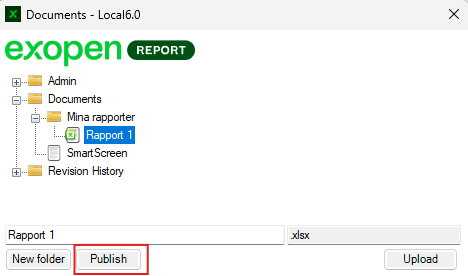
Click Publish to update the report in the report tree.
If you instead want to create a copy of the report, select a folder and enter a new name. You can also use the same name if the copy is placed in a different folder.
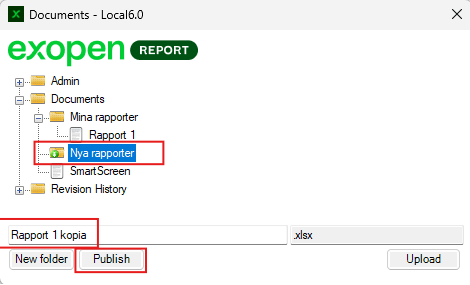
Then click Publish to create the copy.
New report
If you have created a new report, first select the folder where the report should be placed and then enter a name for the report.
Click Publish to create the report in the report tree.
When a new report has been created, you will often also need to specify which users should have access to the report.